
Customer Portal
Welcome! This guide will help you track your repair, approve estimates, make payments, and stay in touch with your repair shop — all from a secure online portal.
Getting Started
Section titled “Getting Started”Accessing Your Portal
Section titled “Accessing Your Portal”When you drop off your device, you’ll receive a receipt card with a QR code. To access your portal:
Option 1: Scan the QR Code
- Open your phone’s camera app
- Point at the QR code on your receipt card
- A link will appear — tap it
- You’re logged in (no password needed)
Option 2: Use the Link in Your Email
- Check your email for a message from the repair shop
- Subject line: “Your Repair is Ready — Approval Needed” (or similar)
- Click the link in the email
- You’re logged in automatically
Option 3: Manual Link
- If you saved the link, paste it in your browser
- The portal will remember you for 90 days (token expiry)
Security Note: This link is personal to you and your device. Don’t share it. Anyone with the link can approve repairs and make payments on your behalf.
Portal Layout Overview
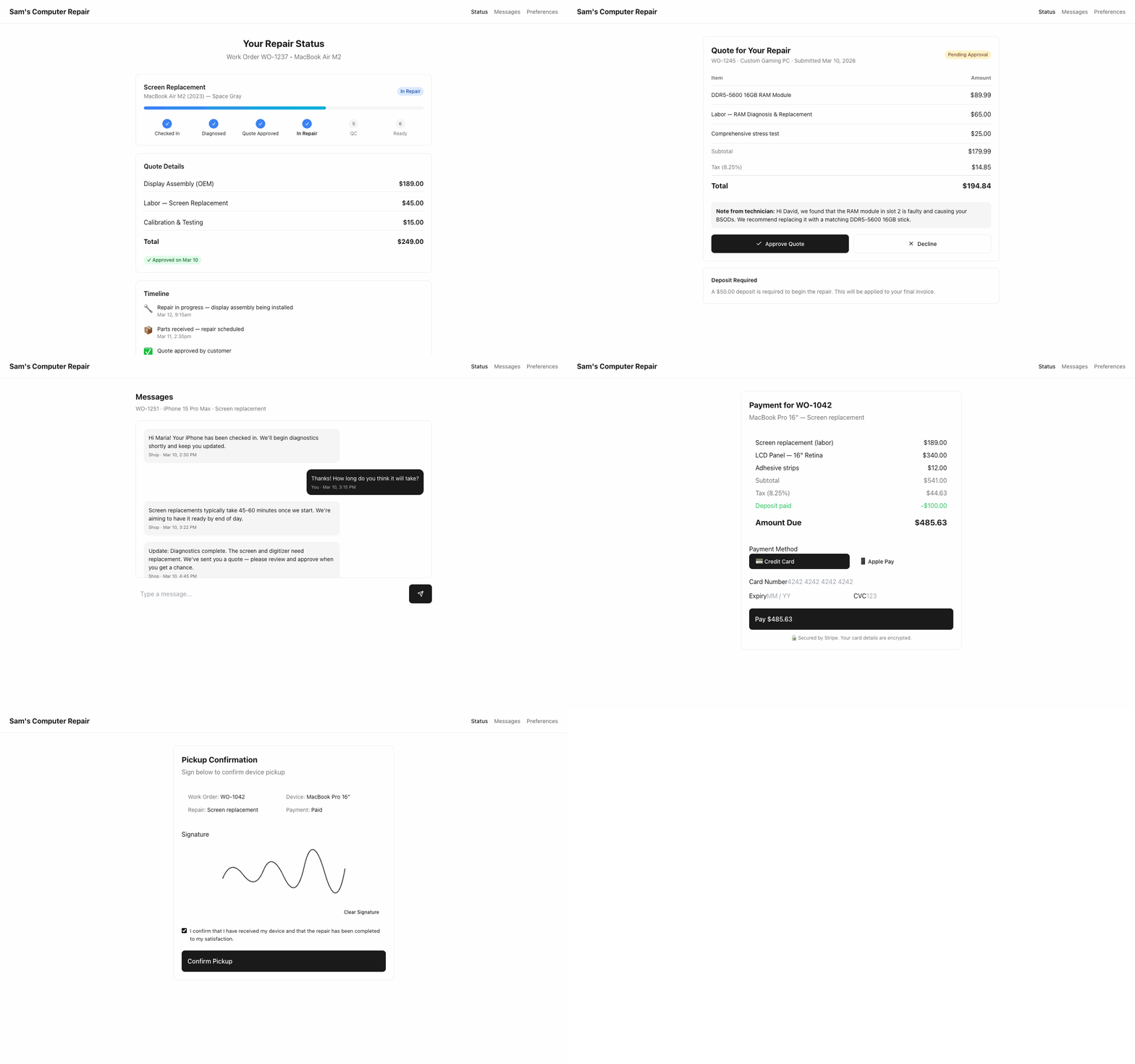
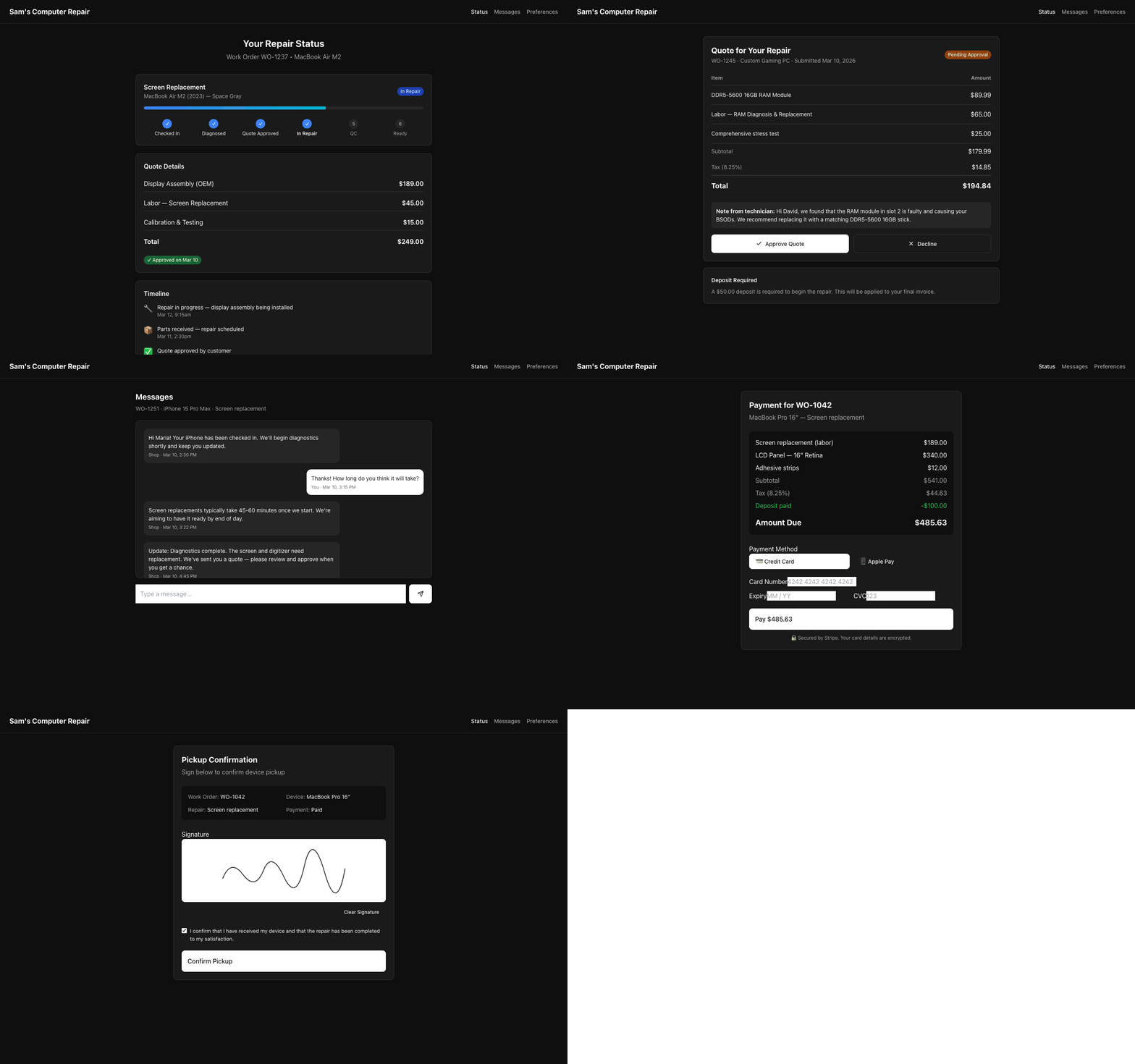
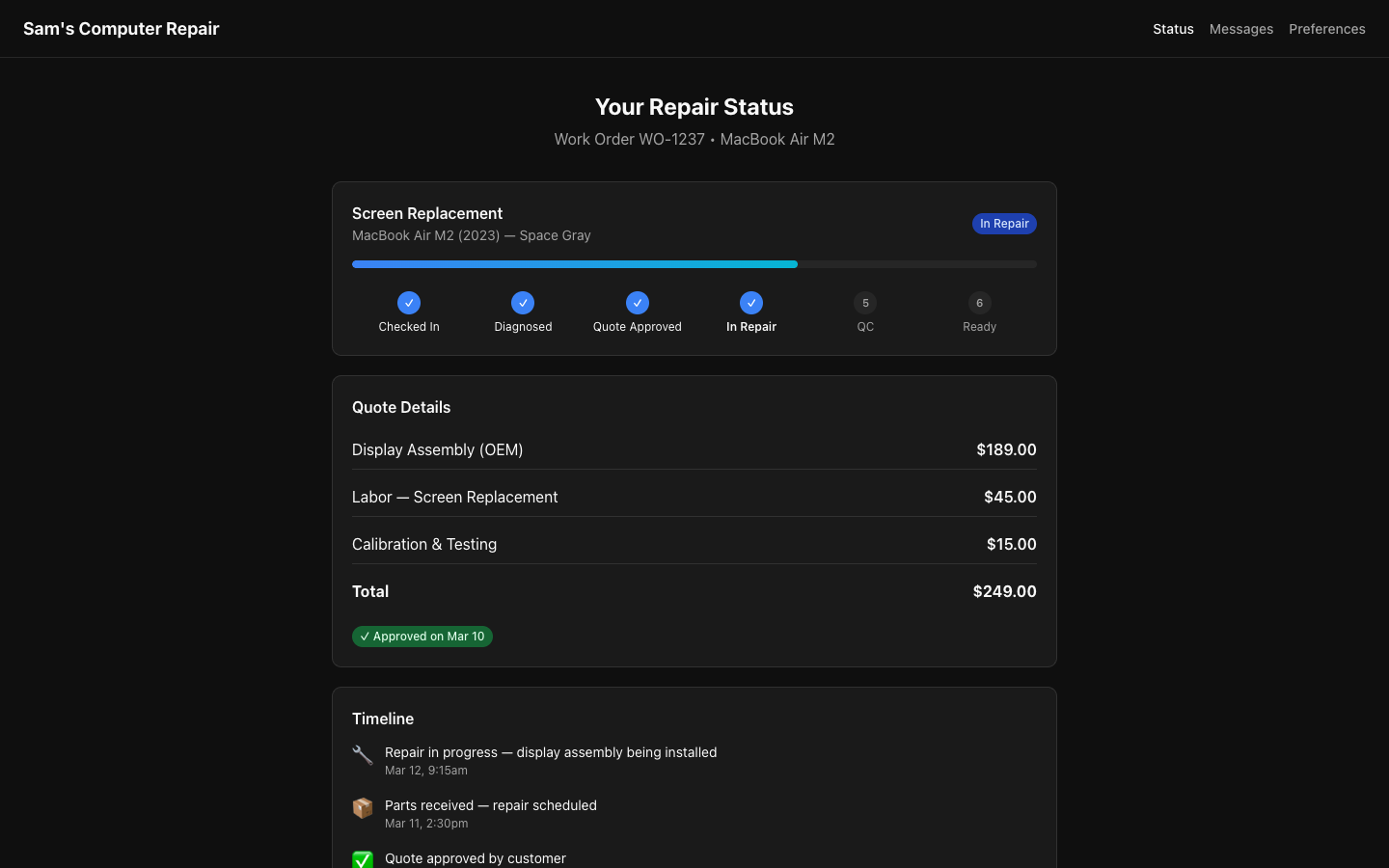
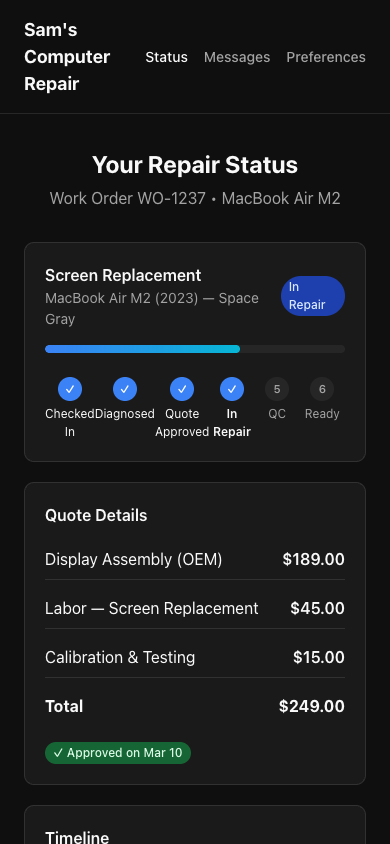
Section titled “Portal Layout Overview”Once you’re logged in, you’ll see:
| Section | What’s Here |
|---|---|
| Ticket Status | Where your device is in the workflow (DIAGNOSTICS, APPROVED, IN_REPAIR, etc.) |
| Timeline | Step-by-step progress with dates and notes |
| Estimates | Quote details (parts, labor, costs) with approve/decline buttons |
| Messages | Chat with the shop team |
| Payments | Pay online, view invoices, download receipts |
| Device Details | Photos, issue description, repair history |
Tracking Your Repair Status
Section titled “Tracking Your Repair Status”Understanding the Status Timeline
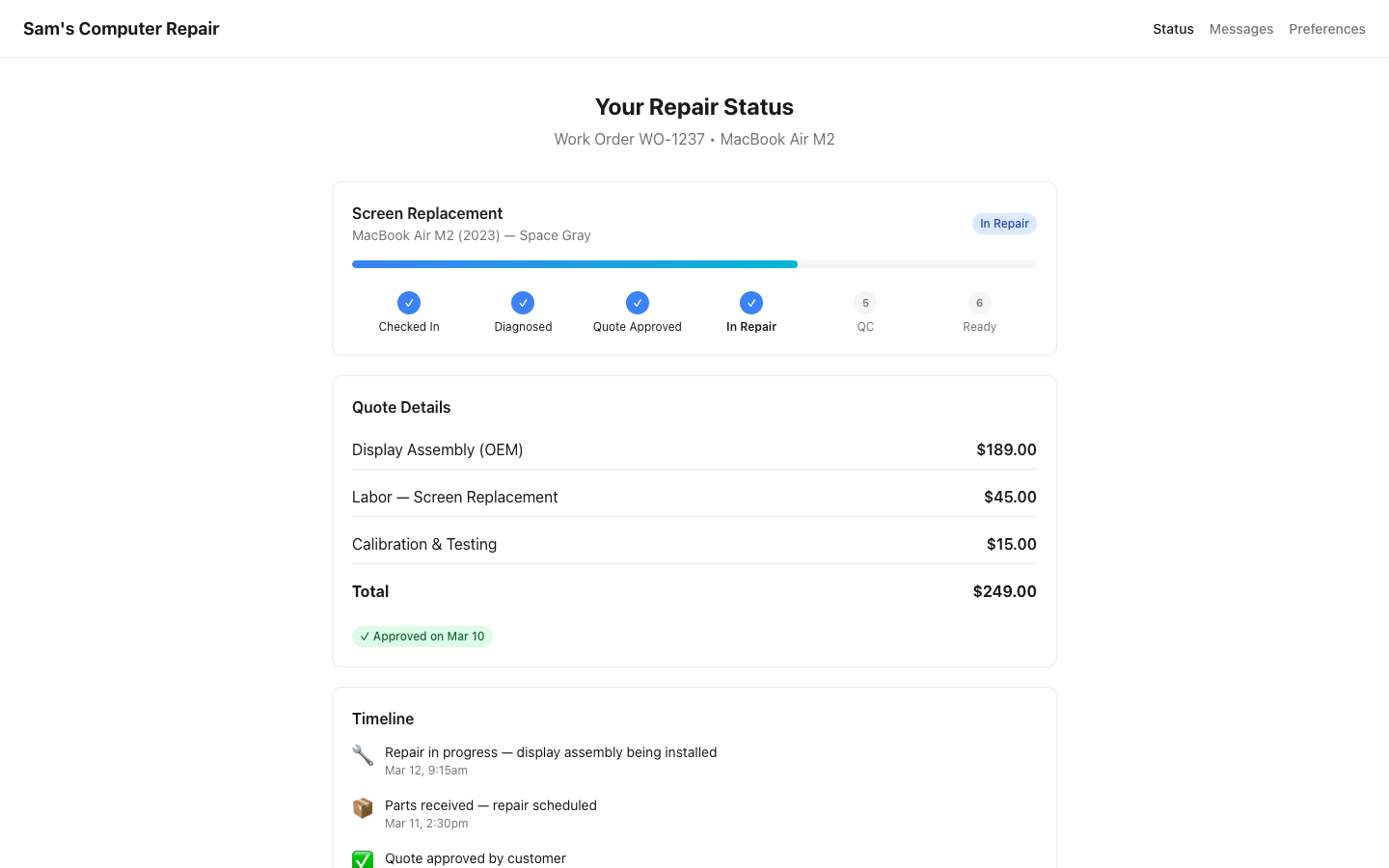
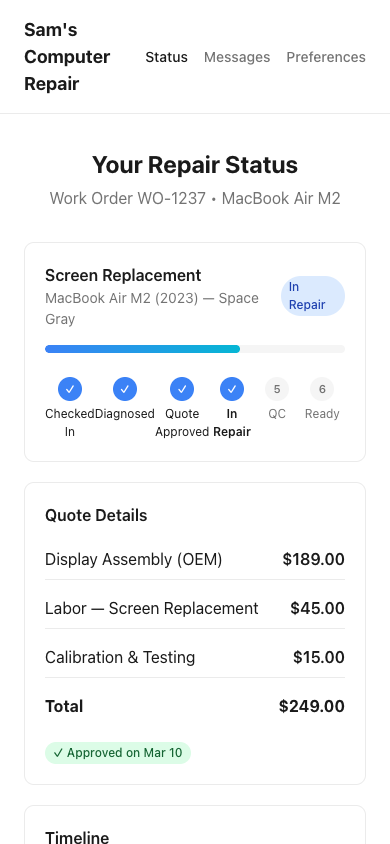
Section titled “Understanding the Status Timeline”Your ticket moves through stages. Here’s what each means:
| Status | What’s Happening | Timeframe |
|---|---|---|
| INTAKE | Your device was checked in; waiting for initial review | Same day |
| DIAGNOSTICS | Tech is investigating your device | 1-2 days |
| WAITING_APPROVAL | Shop has diagnosed the issue; waiting for you to approve the repair quote | You decide |
| APPROVED | You approved the quote; repair is about to start | Depends on parts |
| WAITING_ON_PARTS | Repair paused; waiting for parts to arrive from supplier | 2-10 days (varies) |
| IN_REPAIR | Tech is actively fixing your device | 1-7 days (varies) |
| QC_REVIEW | Quality check in progress to ensure repair was done right | 1 day |
| READY_FOR_PICKUP | Your device is done and approved; ready for pickup | Pick it up! |
| PICKED_UP | You collected your device; repair is complete | Done! |
Viewing the Timeline
Section titled “Viewing the Timeline”Scroll down on your portal to see the Timeline:
- Each status change shows a timestamp
- Notes from the shop team explain what’s happening (e.g., “Parts arrived from supplier; repair starting now”)
- Photos show the damage and repair progress
Example timeline:
Mar 6, 10:30 AM — INTAKE — Device checked inMar 6, 2:00 PM — DIAGNOSTICS — Technician began investigationMar 7, 9:00 AM — WAITING_APPROVAL — Diagnostics complete; quote sent to you[You approved here...]Mar 8, 10:00 AM — APPROVED — You approved the quoteMar 10, 3:00 PM — READY_FOR_PICKUP — Repair complete; device ready to pick up!Reviewing and Approving Estimates
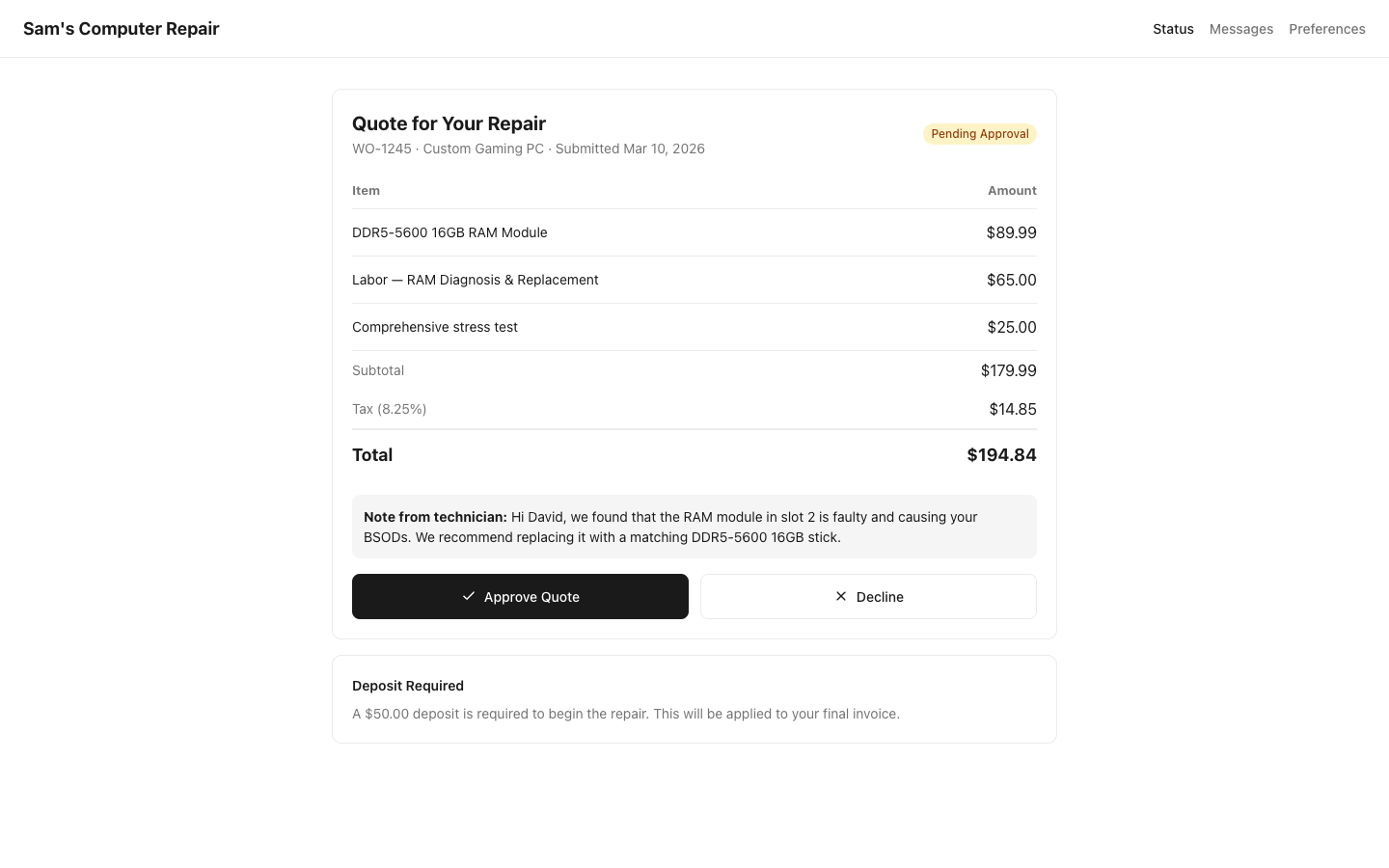
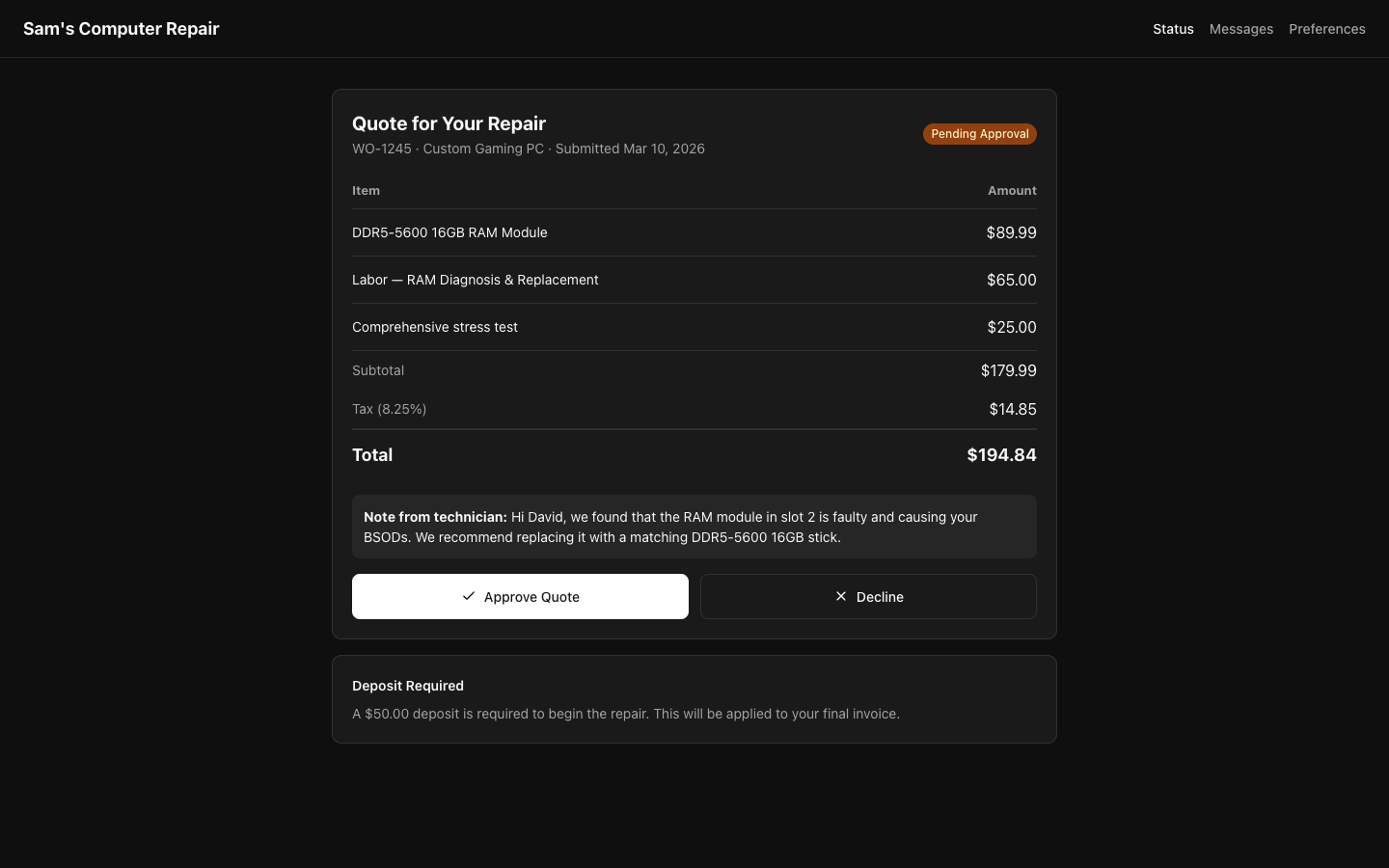
Section titled “Reviewing and Approving Estimates”When the shop completes diagnostics, they’ll send you an estimate (quote). You’ll see it in your portal with a button to approve or decline.
What’s in the Quote?
Section titled “What’s in the Quote?”The estimate lists all costs:
Example:
iPhone 14 Screen Repair — Estimate
Parts:  iPhone 14 OEM Screen      $120.00   qty 1   = $120.00  Screen Adhesive Kit        $8.00    qty 1   = $8.00
Labor:  Technician Labor (1.5 hrs) $50.00/hr x 1.5  = $75.00
Services:  Rush Fee (Same-Day)        $25.00    qty 1   = $25.00
Subtotal:                                      $228.00Discount (if any):                            -$0.00─────────────────────────────────────────────────────TOTAL:                                        $228.00
What to check:
- Parts: Are they the right ones? (OEM vs. aftermarket quality)
- Labor: Does the time seem reasonable?
- Cost: Does it match what you expected?
Approving the Quote
Section titled “Approving the Quote”- Read the estimate carefully
- Click “I Approve This Quote”
- Confirm:
- “I understand I’m authorizing $228.00 for this repair”
- Click “Confirm Approval”
Once approved:
- The shop gets notified: “Customer approved the repair”
- Work begins (or continues if parts are on order)
- You can’t cancel after this (though you can contact the shop if your situation changes)
Declining the Quote
Section titled “Declining the Quote”If the price is too high or the repair isn’t what you expected:
- Click “I Would Like to Discuss This” or “Request Changes”
- In the message box, explain:
- “This is higher than I expected. Can you do the repair with an aftermarket screen instead?”
- “I need to think about this; can you hold it until tomorrow?”
- Shop will respond to negotiate or adjust the quote
Example conversation:
You: "The $25 rush fee is unexpected. Can I pick it up tomorrow instead?"Shop: "Of course! Removing the rush fee. New quote: $203. Does that work?"You: "Perfect. Approved."Making Payments
Section titled “Making Payments”You can pay online (recommended) or at pickup.
Paying Online (During Estimate Approval)
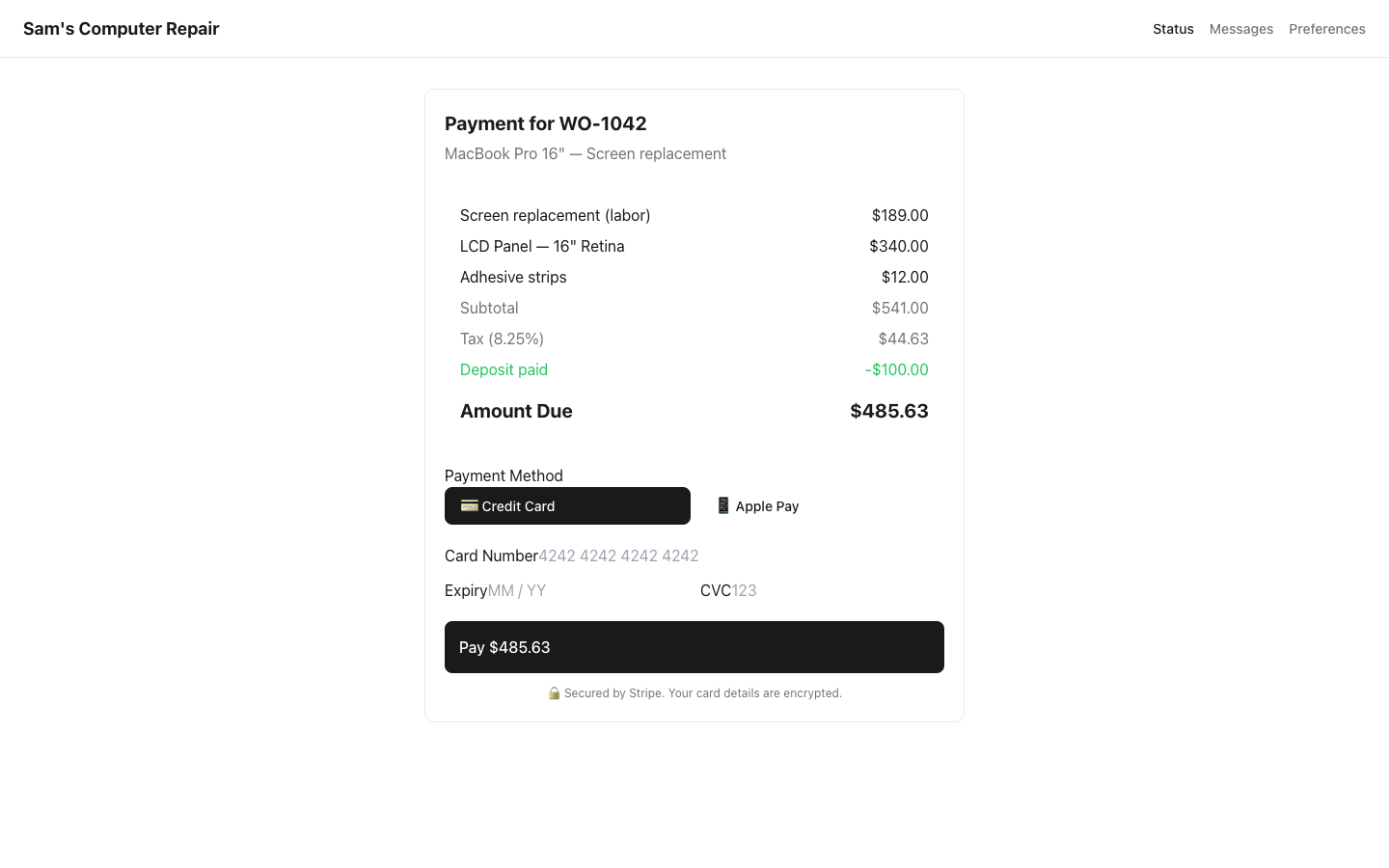
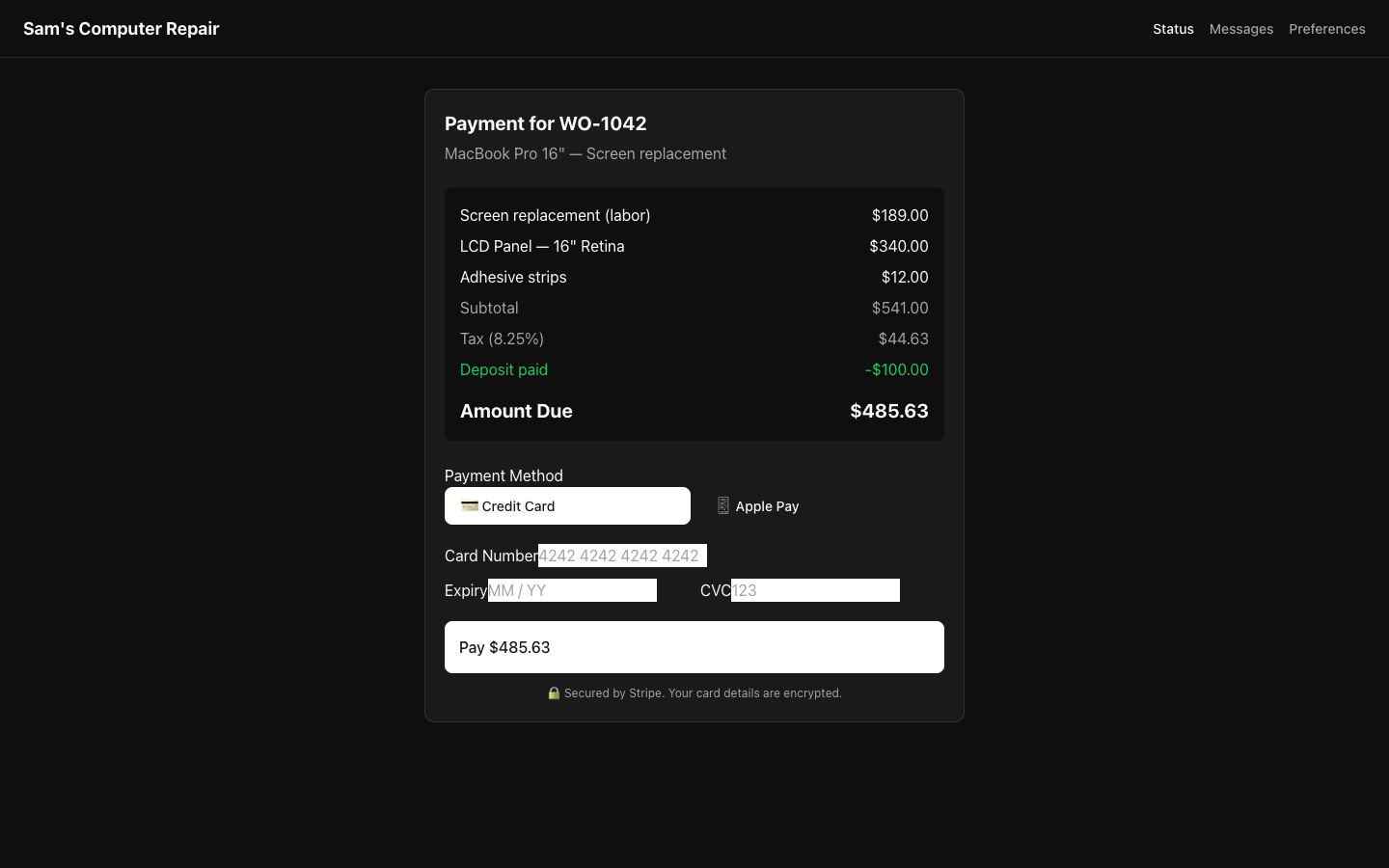
Section titled “Paying Online (During Estimate Approval)”When you approve the estimate, you’ll see a Payment section:
- Click “Pay Now” (optional)
- Enter payment method:
- Credit/Debit Card — Visa, Mastercard, American Express
- Digital Wallet — Apple Pay, Google Pay
- Confirm amount matches the estimate
- Click “Process Payment”
Benefits:
- Faster pickup (no payment step)
- Confirmation email immediately
- Payment recorded for your records
Paying at Pickup
Section titled “Paying at Pickup”If you don’t pay online:
- Device is ready (in READY_FOR_PICKUP status)
- Go to the shop with ID
- Tell staff your name
- They’ll ask: “How would you like to pay?”
- Pay cash, card, or digital payment
- They’ll give you a receipt (and email it too)
Messages: Asking Questions
Section titled “Messages: Asking Questions”Anytime you have a question, message the shop directly.
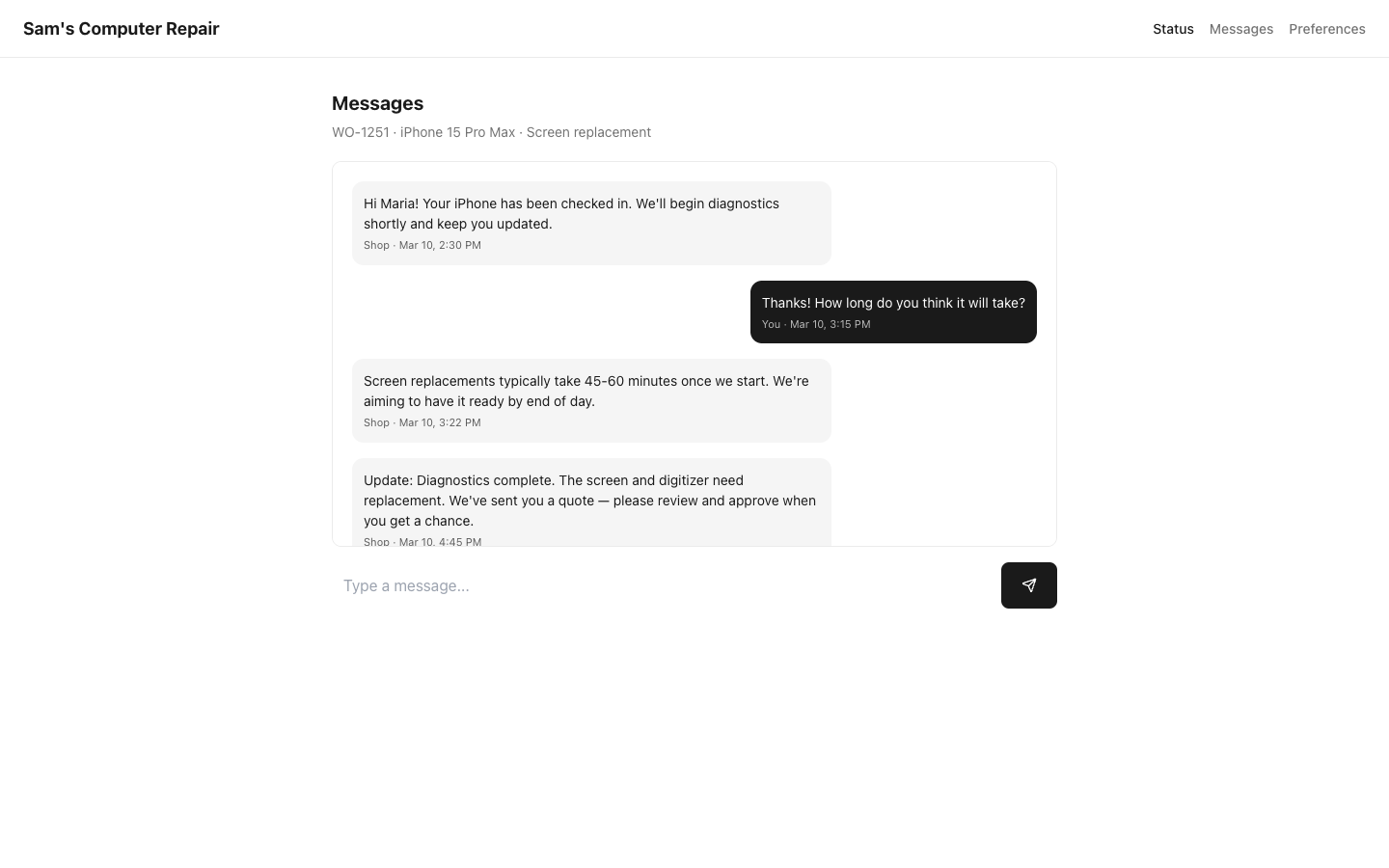
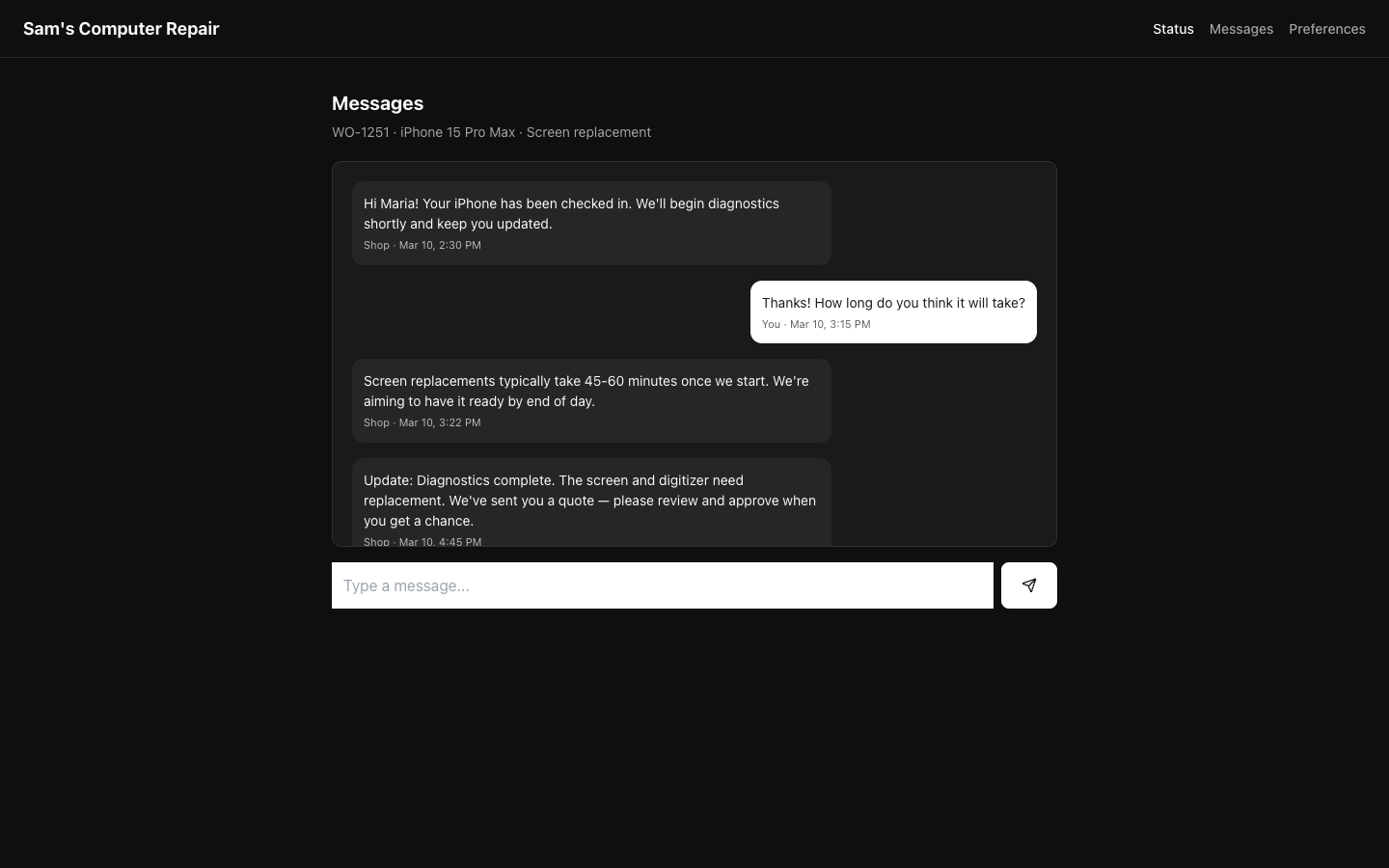
Sending a Message
Section titled “Sending a Message”- Scroll to Messages section
- Click “Send Message” or “Ask a Question”
- Type your message:
- “I work until 5 PM — can I pick up after 5:30?”
- “Is my device covered by warranty?”
- “Can you recommend a protective case?”
- Click “Send”
Response time:
- Weekdays: Usually 2-4 hours
- Evenings/Weekends: Next business day
Receiving Messages
Section titled “Receiving Messages”Shop responses will appear in the Messages section. You’ll also get an email notification:
"Joe from [Shop Name] replied to your message:
'Yes, we're open until 6 PM! No problem picking up at 5:45.'"
Tip: Use messages for quick questions. If something needs urgent attention (you need it today, etc.), call the shop directly. Phone is faster.
Downloading Invoices and Receipts
Section titled “Downloading Invoices and Receipts”Once your repair is complete and paid, you can download your invoice.
Finding Your Receipt
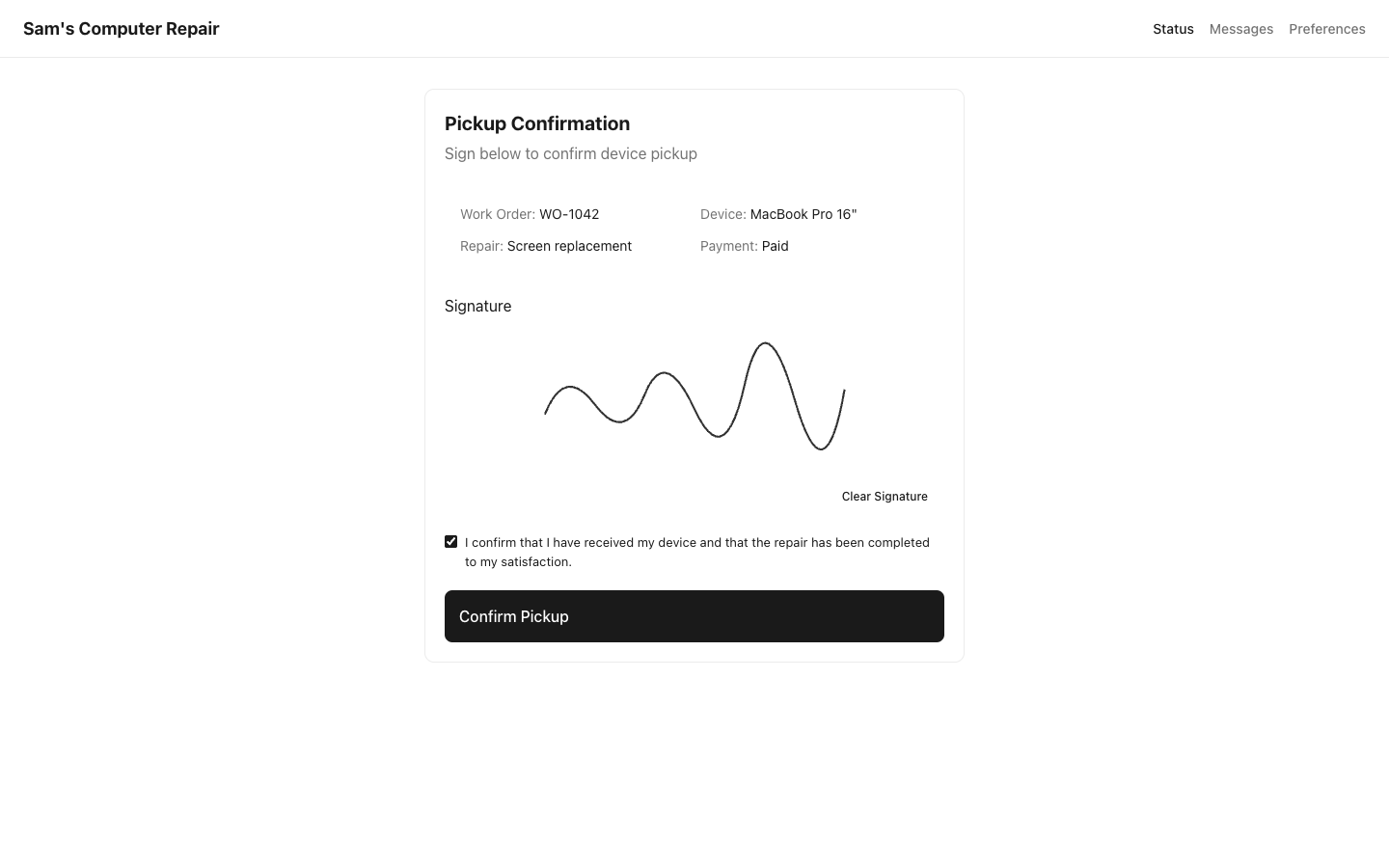
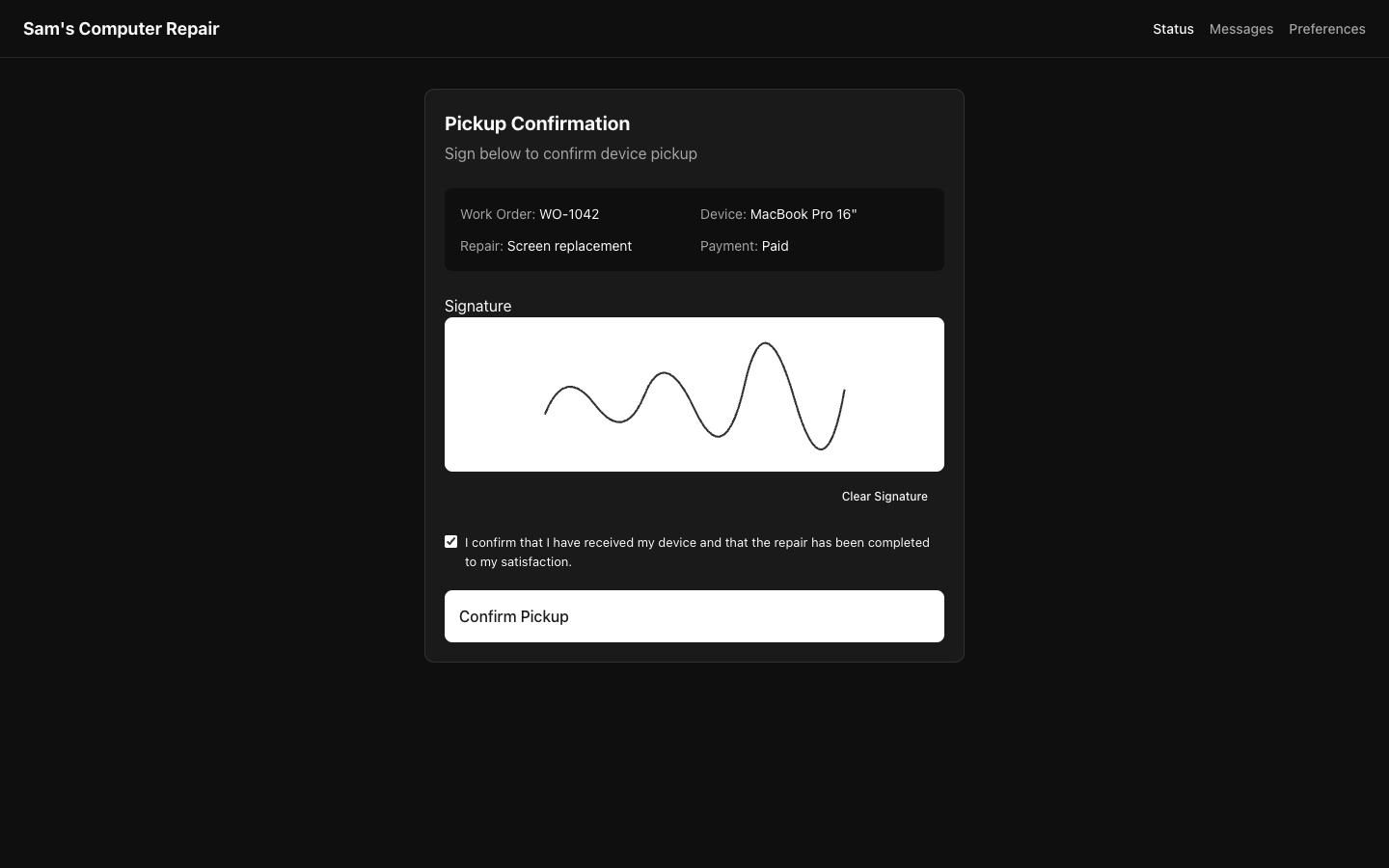
Section titled “Finding Your Receipt”- Scroll to Payment & Invoice section
- You’ll see:
- Invoice date and number
- Full itemized breakdown
- Total paid
- Payment method
- Shop’s name, phone, address
Downloading as PDF
Section titled “Downloading as PDF”- Click “Download Invoice” (usually a PDF icon)
- File saves to your Downloads folder (named something like
invoice_REP-001.pdf) - Open it anytime, or print it for your records
Use it for:
- Tax deductions (if it’s for business)
- Warranty documentation
- Expense tracking
- Dispute resolution (keep a copy for 1+ year)
System Builds and Recommendations
Section titled “System Builds and Recommendations”If your shop offers PC building, you may see recommendations for system builds tailored to your needs.
Viewing Recommended Builds
Section titled “Viewing Recommended Builds”-
Scroll to System Builds section (if available)
-
Browse recommended configurations:
- Gaming PC ($800-$1500)
- Workstation (video editing, etc.)
- Budget Build ($500)
- etc.
-
Each build shows:
- Key components (CPU, GPU, RAM, storage)
- Approximate cost
- Use case (what it’s good for)
- Links to retailers
Saving a Build
Section titled “Saving a Build”Interested in a build?
- Click “Save Build” or “Share with Friend”
- System bookmarks it for you to review later
- You can compare specs side-by-side
Note: Links go to retail partners. Shop gets affiliate credit if you buy through their link (at no extra cost to you).
Notification Preferences
Section titled “Notification Preferences”Control how the shop contacts you.
Managing Your Notifications
Section titled “Managing Your Notifications”-
Scroll to Preferences or Settings
-
Check which contact methods you prefer:
- Email (recommended for important updates)
- SMS / Text (if shop offers it)
- In-portal messages only
- Do not notify (you’ll check the portal yourself)
-
Quiet hours (optional):
- “Don’t contact me before 9 AM or after 9 PM”
- “Don’t contact me on Sundays”
What You’ll Get Notified About
Section titled “What You’ll Get Notified About”- Status changes (device entered repair, QC review, ready for pickup)
- Approval requests (quote sent; action needed)
- Messages from the shop
- Payment confirmations
- Estimate adjustments
Troubleshooting
Section titled “Troubleshooting””I lost the link to my portal”
Section titled “”I lost the link to my portal””- Check your email for the original message from the shop (search “repair” or shop name)
- Click the link in that email
- Can’t find it? Call the shop with your name and phone number; they can resend
”The link isn’t working”
Section titled “”The link isn’t working””- Check the URL — make sure you copied the whole link (sometimes it gets cut off)
- Try accessing on a different device (phone vs. computer)
- Clear your browser cache and try again
- If still broken, contact the shop directly
”I approved the quote but need to cancel”
Section titled “”I approved the quote but need to cancel””- Contact the shop immediately via Message or phone
- Explain your situation
- They may be able to cancel before work starts
- If work already started, ask about partial refund options
”My payment didn’t go through”
Section titled “”My payment didn’t go through””- Check your bank/card to see if charge was attempted
- Try a different payment method
- Message the shop: “Payment failed; can you try again?” or “I’ll pay at pickup instead"
"Can I download a copy of the estimate?”
Section titled “"Can I download a copy of the estimate?””- Click the estimate section
- Look for “Download Quote” button (if available)
- File saves as PDF
- If button isn’t there, message the shop: “Can you email me the estimate?”
Privacy and Security
Section titled “Privacy and Security”Your portal is secure. Here’s how we protect your information:
Your Data
Section titled “Your Data”- Password: You don’t need one — we use a secure token instead
- Link expiry: Expires in 90 days (prevents old links from being used)
- Encryption: All data is encrypted in transit (HTTPS)
- Privacy: Only you and the shop team can see your device info
Safe Practices
Section titled “Safe Practices”- Don’t share your link — Each person/device has a unique link
- Close browser when done — Especially on shared devices
- Check the sender — Repair shop messages come from
@repairops.app
Data Retention
Section titled “Data Retention”- Your repair info is kept on file for 3 years (for warranty + dispute resolution)
- After that, data is archived
- You can request deletion anytime (contact the shop)
Frequently Asked Questions
Section titled “Frequently Asked Questions”Q: Can I check my repair status without logging in?
- No, you need the link. But you don’t need a password — the link is your login.
Q: How long is the portal link active?
- 90 days. After that, contact the shop to request a new link.
Q: Can I share my link with a friend or family member?
- Yes, but anyone with the link can approve repairs and make payments. Only share with people you trust.
Q: What if I want to add someone else (spouse, parent) to view the ticket?
- Message the shop: “My spouse needs to approve this; can you send them a link?” They can create an additional portal link.
Q: Can I print my estimate?
- Yes. Take a screenshot or look for a “Print” button in your browser.
Q: How do I know if my repair is under warranty?
- That depends on your shop’s policy. Ask via message: “Is this repair covered by warranty?”
Q: Can I request a specific technician?
- Message the shop: “Is [Tech Name] available? I’ve worked with them before.” They’ll do their best to honor your request.
Q: What if I’m not happy with the repair?
- Contact the shop within 7 days. They may offer a re-repair, refund, or adjustment.
Contact & Support
Section titled “Contact & Support”- Shop direct contact: Listed at the top of your portal (phone, email, hours)
- Message the shop: Use the in-portal message feature (they see it within 24h)
- Report a portal problem: Email support@repairops.app with your ticket number
Tips for Success
Section titled “Tips for Success”-
Check your portal weekly. Status updates appear automatically; you’ll see progress anytime.
-
Approve quotes quickly. The sooner you approve, the sooner work begins and you get your device back.
-
Ask questions early. If you’re unsure about a part or cost, ask before approving.
-
Keep your email up to date. You’ll get important notifications there.
-
Save your receipt. Keep the PDF for your records (warranty, taxes, etc.).
-
Pay online if you can. It’s faster and you get instant confirmation.
-
Message, don’t call. Messaging is logged and helpful; phone is better for urgent items only.
-
Leave a review. After pickup, rate your shop. It helps them improve and helps others find good repair shops.
Next Steps
Section titled “Next Steps”- Approve the estimate (if you haven’t already)
- Check back frequently — Monitor the timeline as work progresses
- Message if you have questions — No such thing as a dumb question
- Schedule your pickup — Once ready, pick up at a convenient time
- Leave a review — Help other customers find this shop
Version: 1.0.0 Last Updated: March 2026 Audience: Repair customers using the RepairOps customer portal