
Knowledge Base + AI Chat
The Knowledge Base transforms your repair shop into a learning organization. Build a searchable library of articles, procedures, and troubleshooting guides. Augment it with AI-powered chat that finds answers instantly using retrieval-augmented generation (RAG).
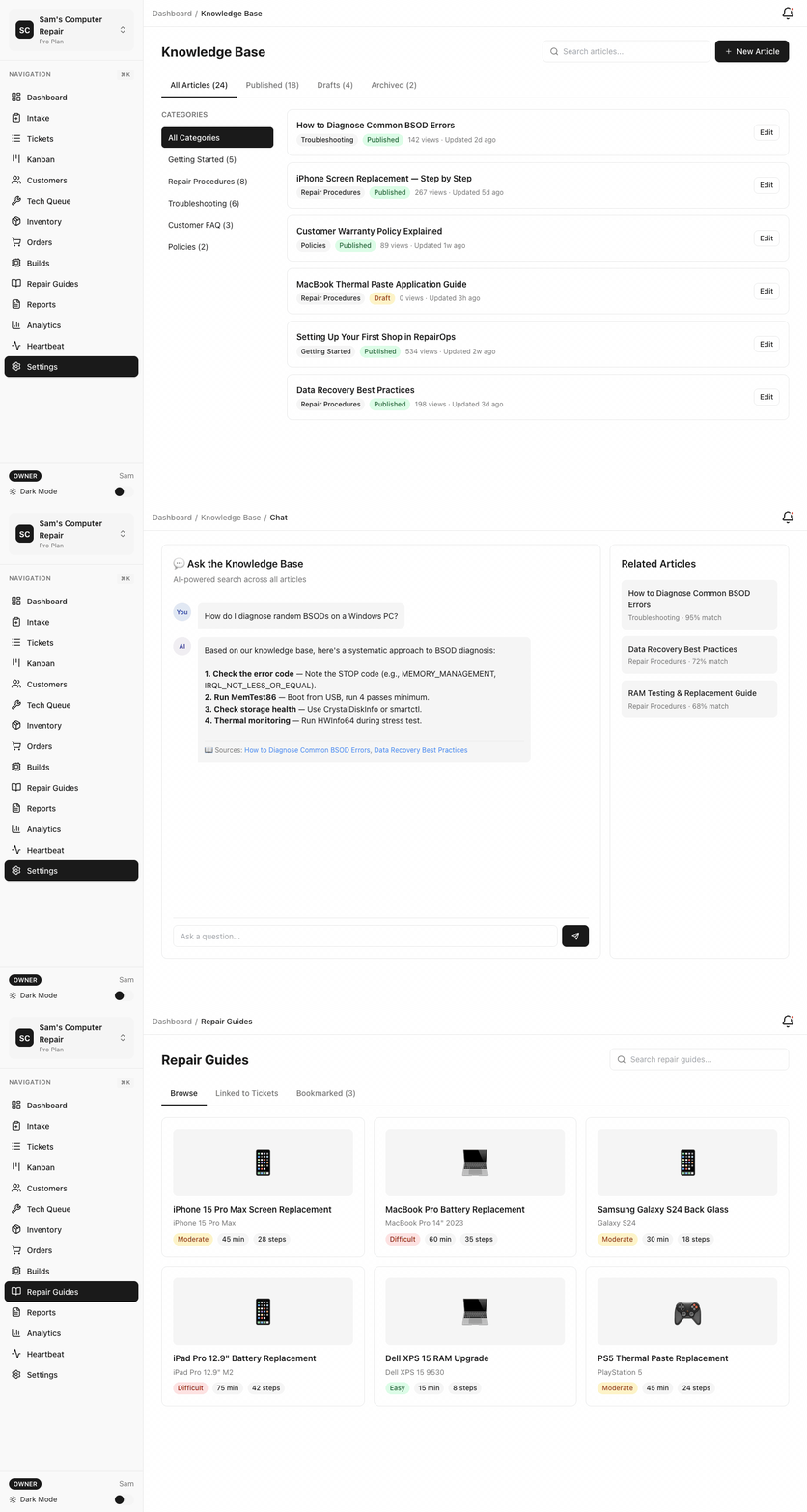
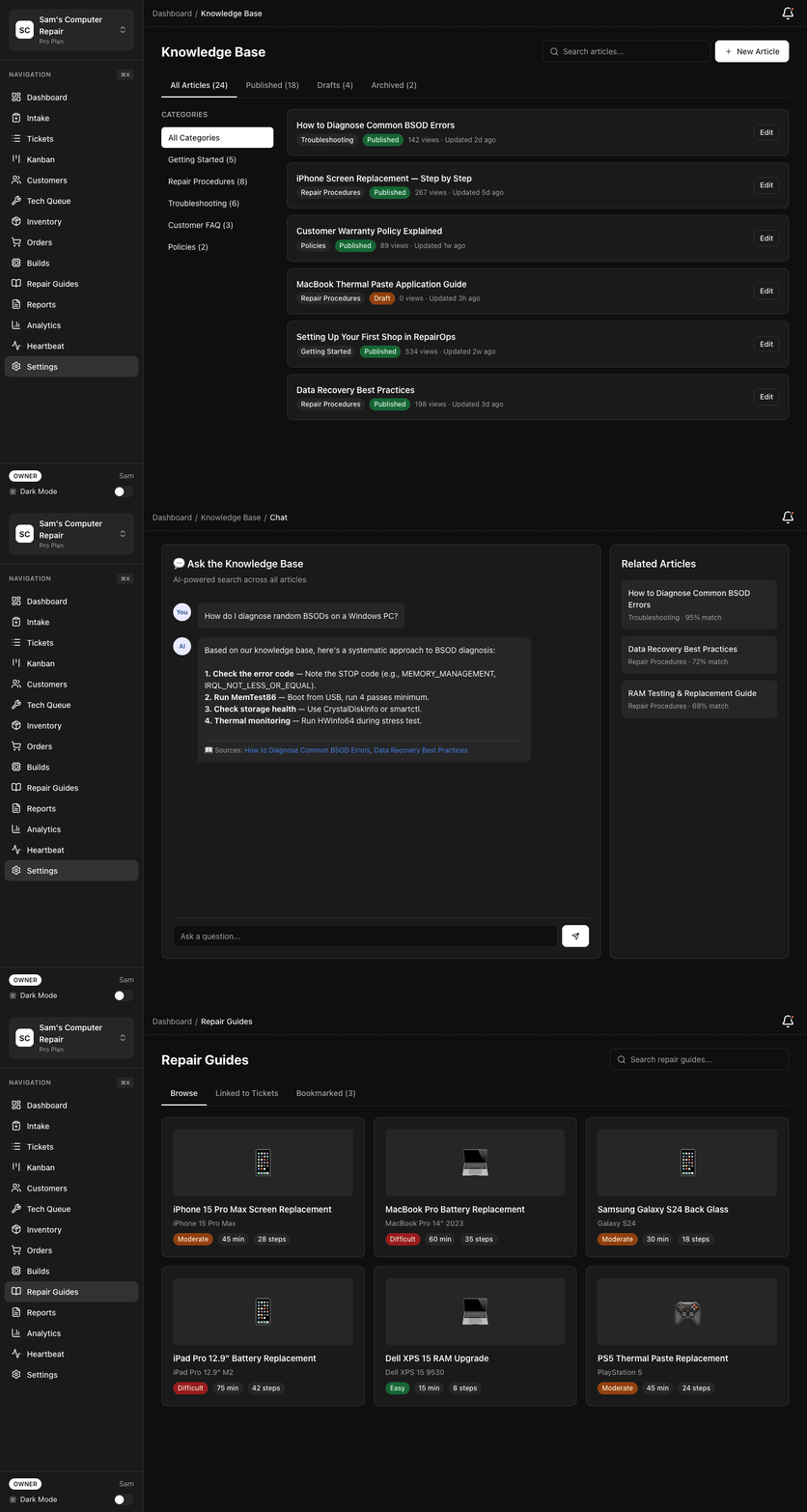
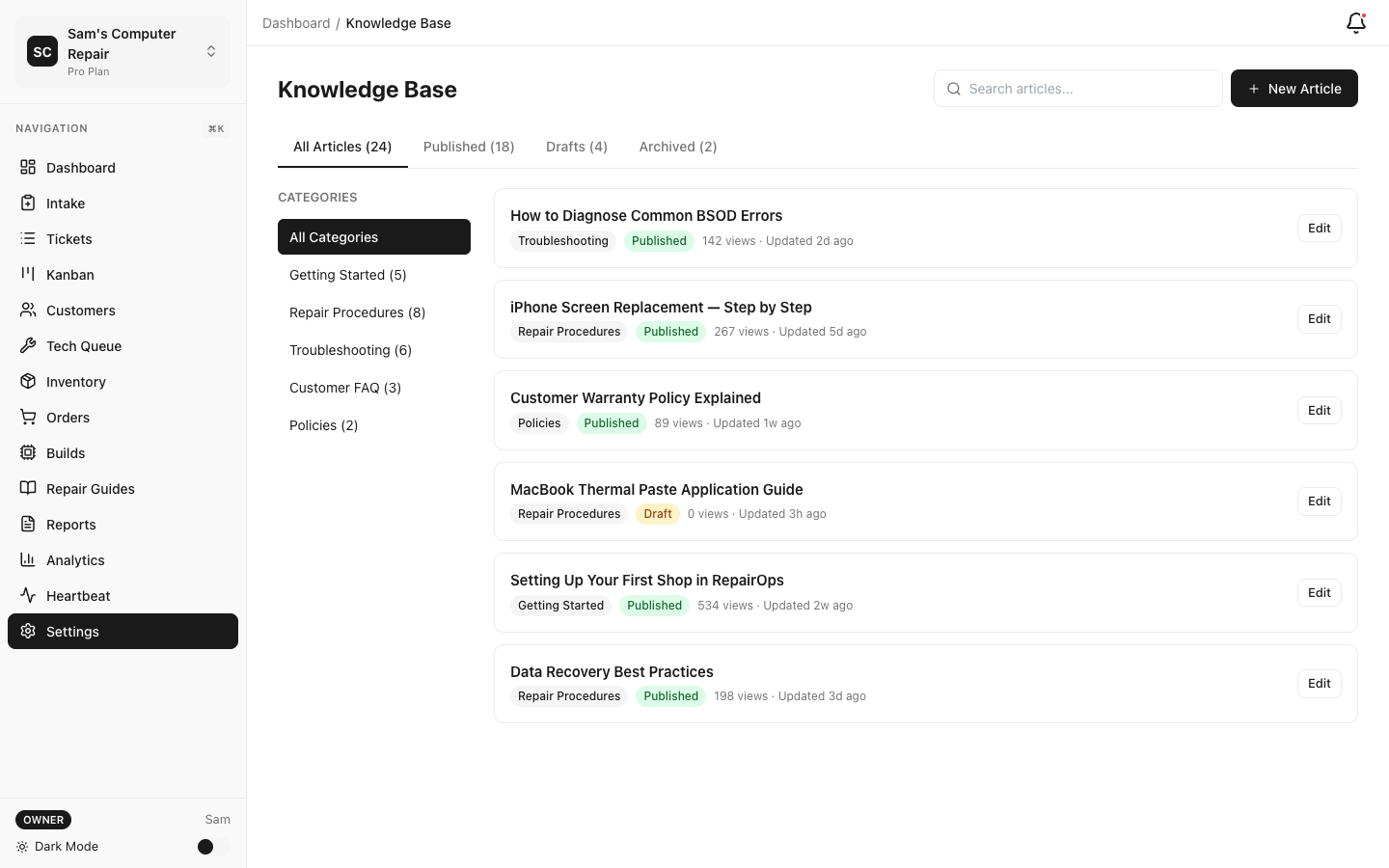
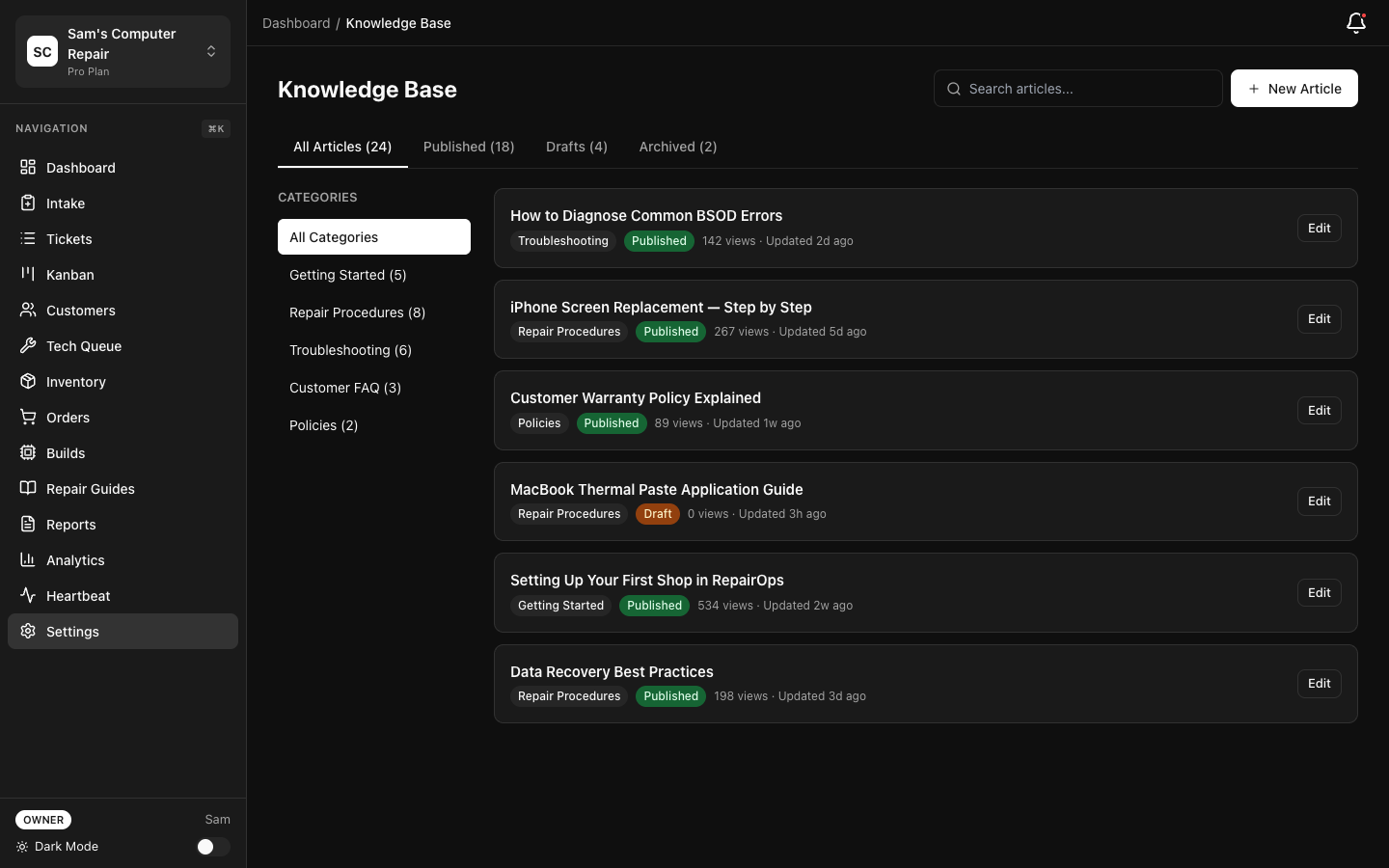
Creating and Managing Articles
Section titled “Creating and Managing Articles”Article Authoring
Section titled “Article Authoring”Articles are created using a rich-text editor with support for:
- Formatting (bold, italic, underline, strikethrough, headers)
- Lists (bulleted and numbered)
- Code blocks with syntax highlighting
- Embedded images and file attachments
- Links and cross-references to other articles
To create a new article:
- Navigate to Knowledge Base → Articles
- Click New Article
- Enter a title and optional description
- Select one or more Categories (e.g., “Diagnostics”, “Motherboards”, “Warranty”)
- Add Tags for cross-indexing (e.g., #blue-screen, #driver-installation)
- Write your article content in the editor
- Attach supporting files (images, PDFs, manuals)
- Save as Draft (visible only to editors) or Published (visible to all staff)
Organization & Discoverability
Section titled “Organization & Discoverability”Articles are organized via:
- Categories — Top-level groupings (parts, procedures, policies)
- Tags — Cross-cutting labels (customer-facing, urgent, seasonal)
- Search — Full-text search across titles, content, and metadata
Staff can browse by category or use search to find answers instantly.
Publishing Workflow
Section titled “Publishing Workflow”All articles follow a publishing lifecycle:
| Status | Visibility | Use Case |
|---|---|---|
| Draft | Editors only | Work in progress, pending review |
| Published | All staff | Live and searchable |
| Archived | None (searchable via history) | Outdated but preserved for reference |
To publish an article, click Publish in the editor. You can schedule future publication dates or publish immediately. Any staff member with Editor or Owner role can publish.
Revision History
Section titled “Revision History”Every article tracks its complete history:
- View all previous versions
- Restore to an earlier version if needed
- See who made each change and when
- Compare versions side-by-side
Revision history is automatically maintained — no manual archiving required.
Attachments & Media
Section titled “Attachments & Media”Attach files to articles for reference:
- Images — Automatically rendered inline; supports drag-and-drop
- Diagrams — Draw directly in the editor or embed external diagrams
- PDFs — Downloadable schematics, service bulletins, manuals
- Videos — Link to external video tutorials (YouTube, Vimeo)
Media is stored in RepairOps secure object storage with automatic backups.
System Articles
Section titled “System Articles”New organizations automatically receive a set of System Articles covering:
- Welcome & onboarding guide
- Shop policies and procedures
- Common troubleshooting workflows
- Device category overviews
- Data entry best practices
These articles serve as templates and examples. Edit them to match your shop’s procedures, or delete them if not needed.
KB Chat — RAG-Powered Search
Section titled “KB Chat — RAG-Powered Search”What is KB Chat?
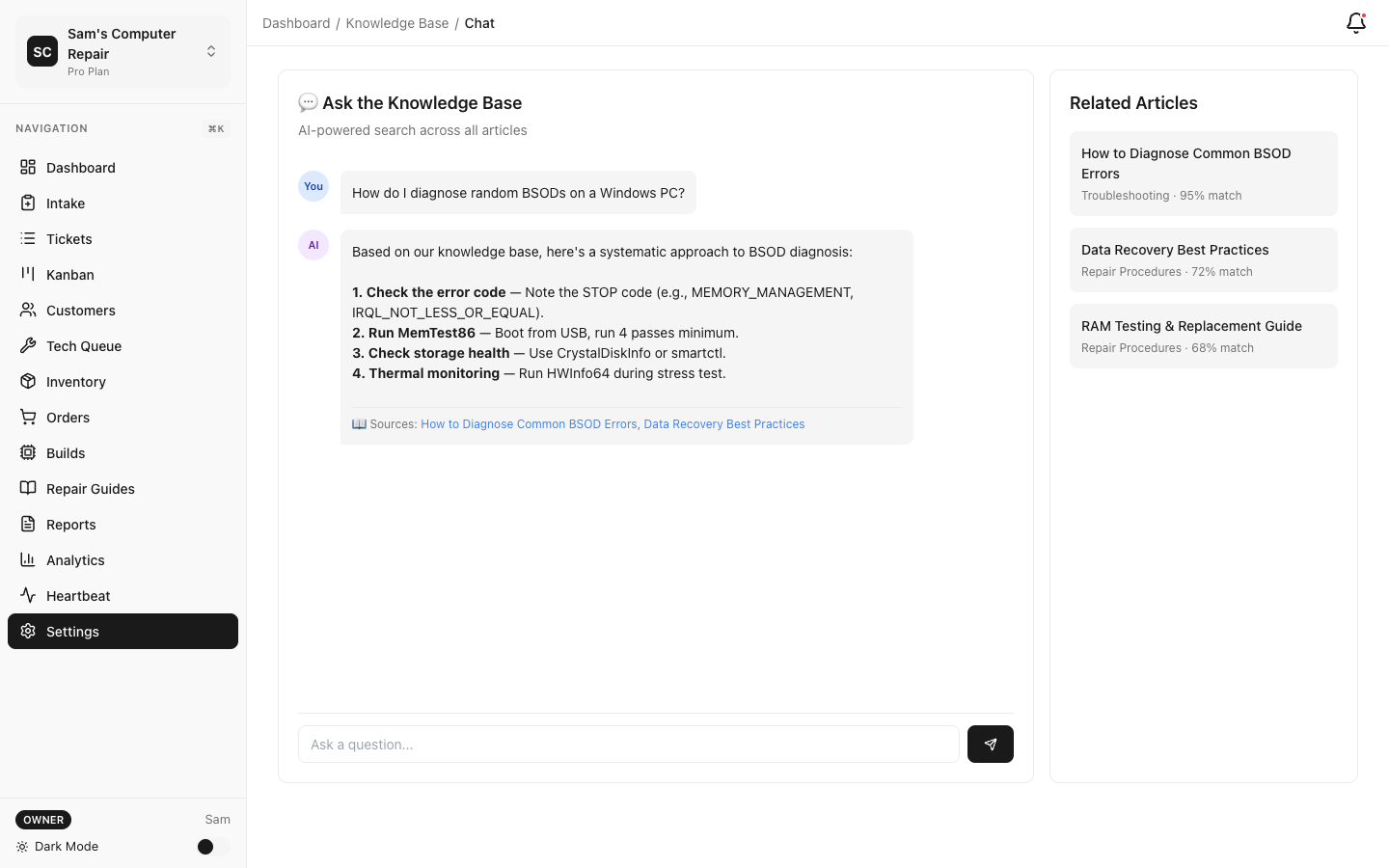
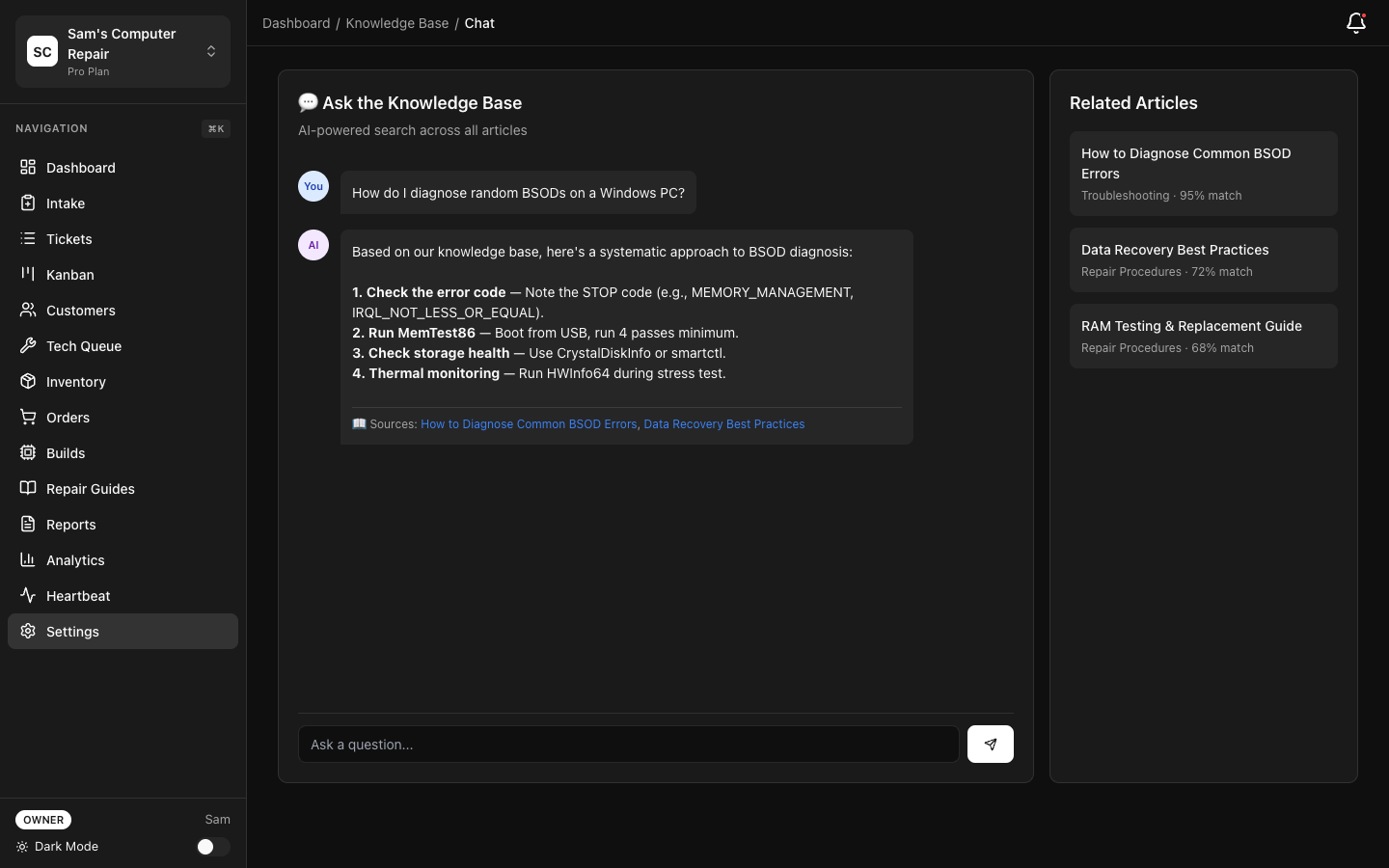
Section titled “What is KB Chat?”KB Chat is an AI-powered assistant that answers questions about your knowledge base using retrieval-augmented generation (RAG). Instead of searching manually, ask a natural-language question and get an instant answer with citations.
Example:
“How do I handle a MacBook with a water-damaged trackpad?”
KB Chat finds relevant articles, extracts key information, and generates a concise answer with links to read the full articles.
Using KB Chat
Section titled “Using KB Chat”KB Chat is available on all tiers, but it requires either an AI add-on or Enterprise AI:
- Starter + AI add-on — Supported inside AI-enabled workflows, subject to your available credits or BYOK limits
- Pro + AI add-on — Same KB Chat support, plus full AI Gateway configuration
- Enterprise — Included with Enterprise AI, including fallback and audit tooling
To use KB Chat:
- Click the KB Chat icon (bottom right or in sidebar)
- Type your question in natural language
- RepairOps searches your knowledge base and generates an answer
- Click View Full Article to read the source material
Answers include:
- Concise summary of the answer
- Citations linking to source articles
- Related articles you might find helpful
- Confidence score (high/medium/low)
How RAG Works (Technical Overview)
Section titled “How RAG Works (Technical Overview)”KB Chat uses a three-step process:
- Embedding — When articles are published, their content is converted into mathematical vectors using an AI embedding model
- Vector Search — Your question is also converted to a vector, then searched against the database using similarity matching
- AI Completion — The most relevant article excerpts are fed to an LLM, which generates a natural-language answer
This approach is faster and more accurate than keyword search alone, and stays within your knowledge base (no internet lookups).
AI Provider Considerations
Section titled “AI Provider Considerations”KB Chat uses your configured AI provider (OpenAI, Anthropic, Google, Groq, or Mistral). Query costs depend on your provider and pricing mode:
- BYOK (Bring Your Own Key) — You pay your provider directly
- Managed Billing — Costs deducted from your AI credit pool
See AI Gateway for pricing details.
Tier Availability
Section titled “Tier Availability”| Feature | Starter | Pro | Enterprise |
|---|---|---|---|
| Create/edit articles | ✓ | ✓ | ✓ |
| Article categories & tags | ✓ | ✓ | ✓ |
| Publishing workflow | ✓ | ✓ | ✓ |
| Revision history | ✓ | ✓ | ✓ |
| File attachments | ✓ | ✓ | ✓ |
| KB Chat (with AI add-on) | ✓* | ✓* | ✓ |
| Multi-language articles | — | — | ✓ |
*Requires an AI add-on or Enterprise AI
Tips & Best Practices
Section titled “Tips & Best Practices”Keep articles up-to-date — Assign someone to review articles quarterly. Archive outdated procedures to keep search results relevant.
Use consistent naming — Establish a naming convention for articles (e.g., “How to: [Task]”, “Troubleshooting: [Issue]”). This makes categories more discoverable.
Link between articles — Cross-link related articles. KB Chat uses these links to provide better context.
Leverage search analytics — Monitor popular searches in the dashboard. If staff frequently search for something not in your KB, create an article for it.
Train your team — Encourage all staff to contribute articles about their expertise. A distributed writing process creates more practical, real-world content.
Related Features
Section titled “Related Features”- AI Gateway — Configure KB Chat’s AI provider and credit budget
- iFixit Guides — Supplement your KB with manufacturer repair guides
- Plugin System — Extend KB with custom integrations